TRK:IQ — Timing Tracks
Upload a song. Two minutes later, download 14 timing tracks for xLights. That's the whole guide — but here's the longer version.
TRK:IQ listens to your song and pulls out everything a sequencer needs. It splits the audio into separate instruments, finds every drum hit and beat, reads the song’s shape, and syncs the lyrics down to individual mouth shapes for singing faces. Everything lands in one .xtiming file you drop straight into xLights.
What a timing track is
A timing track is a row of marks on the xLights timeline that says “something happens here.” A mark on every kick drum. A mark at the start of each word. A label on the chorus. You snap effects to those marks so your lights land on the music instead of floating near it.
xLights stores these in an .xtiming file — plain text under the hood, one file that can hold many tracks. TRK:IQ writes that file for you. No clicking out beats by hand at 2 a.m.
Under the hood, three engines run in a relay:
- Demucs separates the song into six stems — vocals, drums, bass, guitar, piano, and other.
- Essentia finds the BPM, beats, downbeats, and every hit on every stem.
- The lyrics aligner syncs your lyrics to the vocal stem — phrases, words, and phoneme mouth shapes.
Step 1: Upload a song
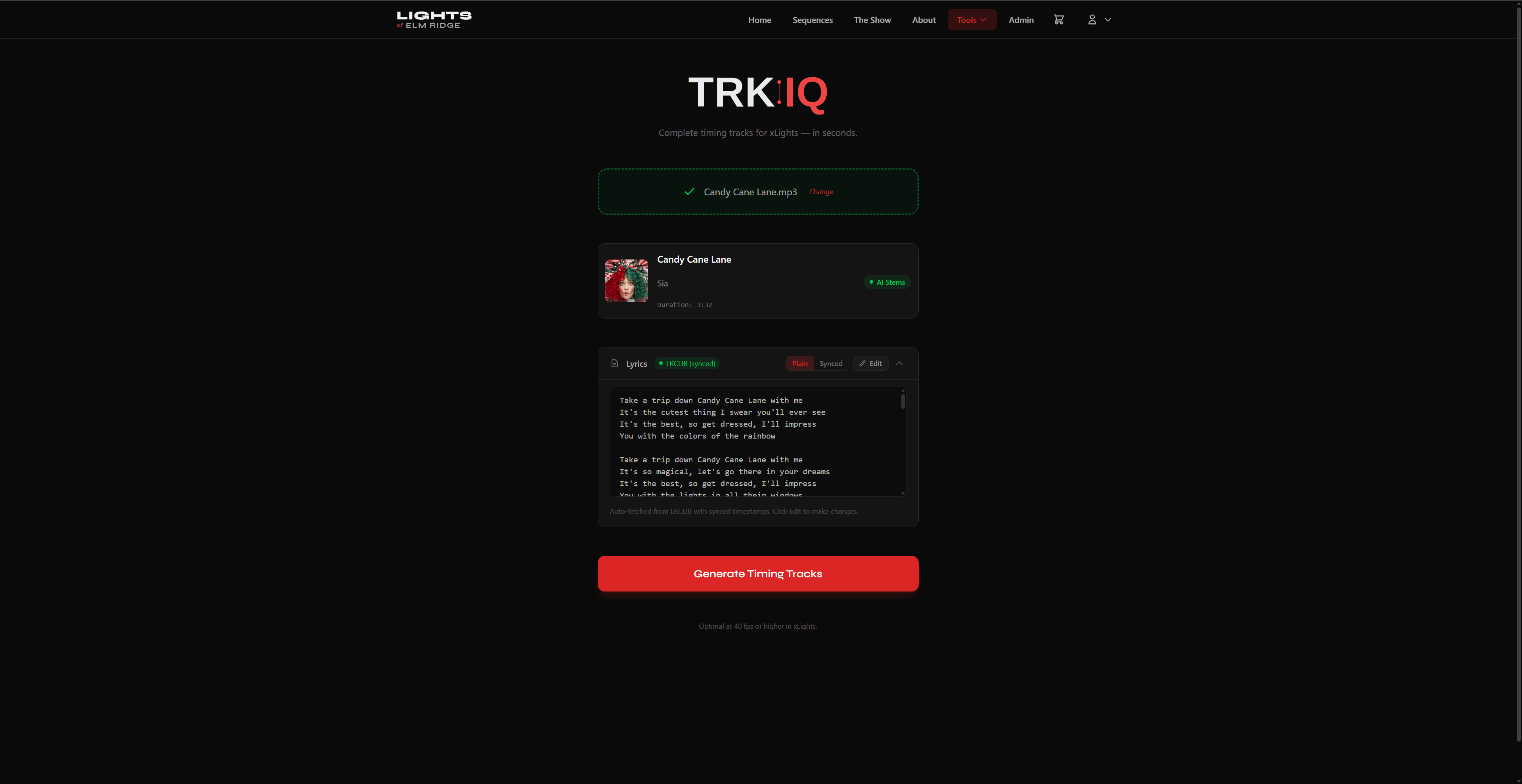
Drop in an MP3, WAV, FLAC, or M4A. TRK:IQ reads the file’s metadata — artist and title — and goes hunting for lyrics on its own. Use the same audio file you’ll use in your xLights sequence, so the marks line up with what your show actually plays.
BPM and beat detection
Once the song is in, TRK:IQ measures its BPM (beats per minute) — the tempo. From there it places a beat grid: a mark on every beat, with the strong downbeats (the “1” of each bar) called out. It also finds the individual hits inside each stem, so a snare track only marks snares and a kick track only marks kicks.
That BPM does double duty. SET:IQ uses it to shape your setlists by energy, so running a song through TRK:IQ feeds two tools at once.
Synced lyrics, re-timed to your song
Lyrics power the singing-face tracks. The more timing info the lyrics carry, the sharper the final sync. There are three ways in:
- Auto-fetch (do nothing). TRK:IQ checks LRCLIB using your file’s artist and title. If it finds synced lyrics — lines with
[mm:ss.xx]timestamps — alignment confidence jumps about 10–20%, and a “synced” badge appears. - Paste plain lyrics. If auto-fetch misses, paste the words yourself. The AI aligner works out the timing from scratch against the vocal stem.
- Paste synced lyrics (LRC format). Have timestamped lyrics already? Paste them and TRK:IQ uses the timestamps as anchors. Each line needs a
[mm:ss.xx]tag up front, with at least 3 valid lines:[00:15.20] I'm on the edge of glory [00:19.80] And I'm hanging on a moment of truth
Sometimes LRCLIB has more than one synced version of a song — a different artist’s cut, or a foreign-language transcription. When it does, TRK:IQ shows them in a short “Which lyrics match your track?” list, each with its artist, line count, length, and a preview, so you can pick the one that fits. If the top match looks like a different language or mix than what’s sung, you’ll get a heads-up to choose another version or paste your own — the timing comes from these lines, so the right words matter.
Here’s the important part: those LRCLIB timestamps are tied to the original release. TRK:IQ re-times them to your file’s true runtime by aligning the words to the actual vocal stem. So even when the streaming version and your copy drift apart by a beat or two, the marks land where your singer sings.
Step 2: Processing
Click Generate and a GPU server takes it from there. A progress ring and step pills track five phases:
| Step | What happens |
|---|---|
| 1. Read | Validates the file and checks a content hash — if this exact song was processed before, you skip straight to the result. |
| 2. Separate | Demucs splits the song into six stems. The heavy lift (~25 seconds on a warm GPU). |
| 3. Beats | Essentia finds BPM, downbeats, and individual hits — kick, snare, hi-hat, toms, cymbals, bass, guitar, piano. |
| 4. Lyrics | The aligner syncs lyrics to the vocal stem in three layers: phrases, words, and phoneme codes. (Shows as skipped if you marked the track instrumental or no lyrics turned up — the instrument tracks still arrive.) |
| 5. Build | Your browser assembles everything into the final .xtiming. No server needed for this part. |
If the GPU is busy you’ll see “Waiting for our turn…” with a queue position. Waits are usually a few seconds — just enough time to untangle an extension cord.
The timestamp editor
Most songs need no touch-ups. When one does — a trimmed edit, a slow intro that throws off the first line — the Timestamp Editor lets you nudge lyric timings by hand without leaving the browser.
- Play and watch. Each lyric line shows its
[mm:ss.xx]stamp. The line that’s currently singing lights up, so you can spot drift fast. - Nudge a line. Move one line earlier or later and the words snap to the new spot. Fix the first line and the rest usually fall in behind it.
- Re-export. When it looks right, build the
.xtimingagain — only the lyric track changes, the beat and onset tracks stay put.
Step 3: Export to xLights
The stats banner shows the detected BPM, total tracks, words (if lyrics ran), and total timing marks. Below it, every track sits in a list organized by tabs — All, Drums, Melodic, Structure, Singing Faces. Each row has a checkbox, a source badge, and a hit count.
- A checkbox — only checked tracks go into your download. Re-check and download again any time, no reprocessing.
- A source badge — green AI (high confidence ≥70%), amber AI (worth a look), Synced (built from LRC timestamps), or Local/Est. (fallback estimates).
- The confidence range and hit count (“342 hits”, “156 words”, “480 phonemes”).
What’s in the file
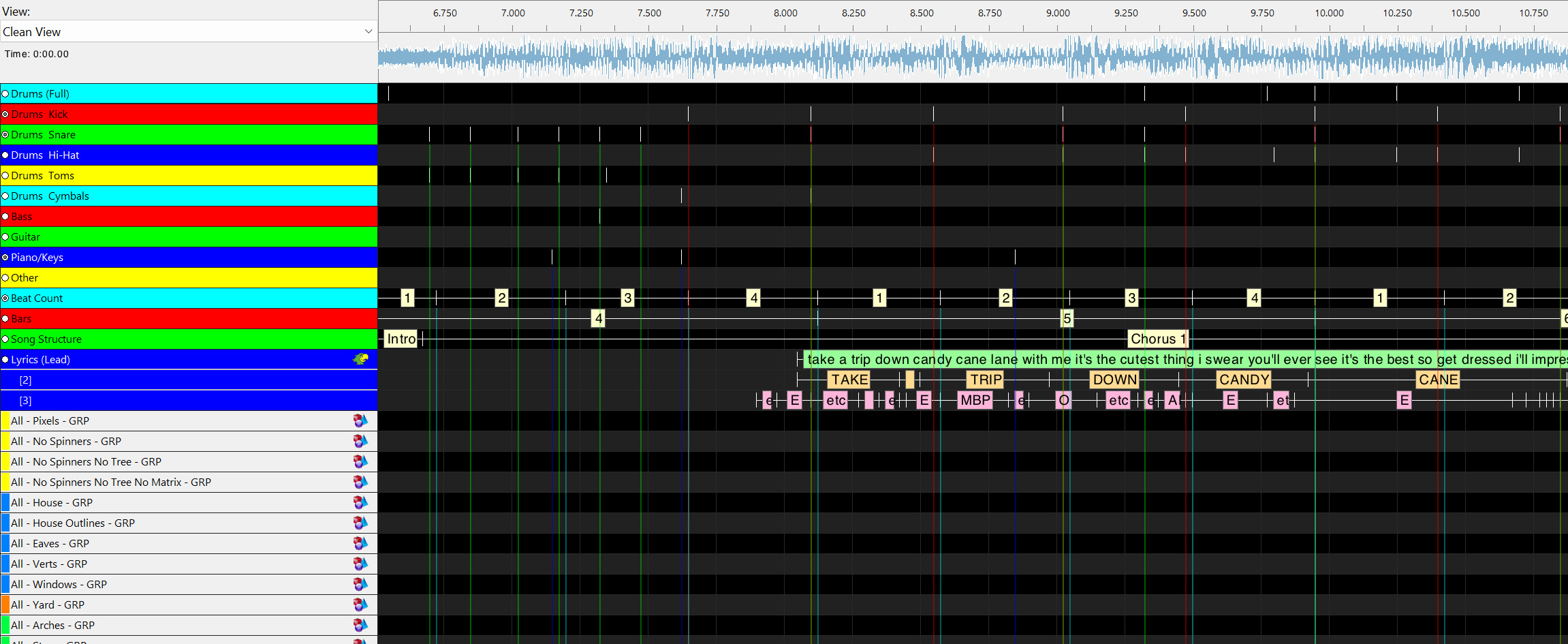
One .xtiming, up to 14+ tracks: five drum tracks (kick, snare, hi-hat, toms, cymbals), onset tracks for bass, guitar, piano, vocals, and “other,” a labeled Beat Grid, a Song Structure track (intro / verse / chorus / bridge / outro), and the Lyrics (Lead) track — three stacked layers of phrases, words, and Preston Blair phoneme codes, which is exactly the format xLights singing faces expect.
Importing into xLights
- 1
Open your sequence
Load (or create) the sequence for this song. Make sure its audio file matches the one you gave TRK:IQ. - 2
Import the timing track
In the sequencer, right-click the Timing Tracks area → Import Timing Track → pick your.xtiming. xLights lists every track inside — import all or cherry-pick — then click OK. - 3
Check what arrived
Onset tracks show thin markers at each hit. Structure tracks show labeled sections. The Lyrics track expands into its three layers: phrases, WORDS, and phoneme codes. - 4
Wire up singing faces
Select your face model and point its singing-face effect at the lyrics track. The phoneme codes (AI, O, E, U, MBP, FV…) are the standard set xLights expects — no conversion needed. - 5
Sequence away
Flash arches on every kick. Chase the beat grid. Go subtle on verses and big on the chorus. This is the fun part.
FAQ
What file formats can I upload?
Do my synced lyrics need to match my exact song version?
LRCLIB didn't find my song.
Artist - Title.mp3 exactly as it appears on streaming services and try again. Still nothing? Paste the lyrics manually — the aligner doesn’t need pre-existing timestamps.LRCLIB found several versions — which do I pick?
How accurate is the BPM?
Can I re-export with different tracks?
A track has a low (amber) confidence badge.
Do I need to stay on the page while it processes?
My song is a trimmed or edited version.
My track has no vocals — an instrumental or sound effects.
My track is a cappella — vocals with no music.